Downloading an operating system image, open-source application, or public dataset from the wrong page can expose a device to modified installers, outdated packages, or misleading advertisements. Search results may display the original publisher beside unofficial mirrors, software directories, shortened links, and pages designed to imitate the real project.
A third-party domain is not automatically unsafe. Many open-source projects and operating-system publishers use authorized mirrors, content delivery networks, or repository hosting services to distribute large files. The important question is whether the project or data owner has identified that location as an approved download source.
A secure process combines source verification with file verification. First, reach the download through the publisher’s official website, documentation, or repository. After downloading, compare the file with a checksum or verify its digital signature when the publisher provides one.

How to Identify Official Download Addresses and Distinguish Them From Reuploaded Links
The following signals should be considered together. A domain name, padlock, or checksum alone is not enough to establish authenticity.
Evaluation CriteriaOfficial Source (Official Download URL)Reuploaded / Third-Party SourceDomain NameLinked from the publisher, agency, project documentation, or verified repositoryCannot be connected to the original publisher or uses a misleading variation of its nameSecurity ProtocolUses HTTPS to protect data in transitMay use HTTP, although fraudulent sites can also obtain valid HTTPS certificatesDownload InterfaceIdentifies the release, version, platform, architecture, and publication dateUses vague filenames, misleading buttons, unexplained installers, or unrelated advertisingVerification DataMay provide checksums, signed checksum lists, package signatures, or code signaturesMay provide no verification information or publish values that cannot be confirmed independentlyMirror StatusListed or linked by the project as an authorized mirror or delivery locationClaims to be a mirror without confirmation from the projectUpdate HistoryMatches the project’s release notes and supported versionsOffers outdated, renamed, modified, or unofficial “premium” editionsHTTPS means the browser has established an encrypted connection to the domain shown in the address bar. A valid website certificate does not prove that the operator is the software publisher or that the downloaded file is safe. Users must still confirm the exact domain and its relationship to the project.
An authorized mirror may use a different hostname from the publisher. This is normal when the publisher links to it directly and provides an independent checksum or signature that can be verified after downloading.
Guide to Inspecting and Analyzing URLs to Find Official Download Links
1. Inspect the Root Domain (Top-Level Domain & Root Domain)
For Public Data: Begin at the agency, university, research institution, or international organization responsible for producing the data. Follow its link to the dataset catalog or download host.
A .gov, .edu, or .org ending can provide context but should not be treated as universal proof. Domain systems and eligibility rules differ between countries, and legitimate public datasets may be hosted through separate national portals, cloud-storage domains, or research repositories.
For Open-Source Projects: Locate the project’s official homepage or documentation first. If it directs users to a GitHub, GitLab, SourceForge, package repository, or mirror network, follow that exact organization and repository.
GitHub provides release pages where project maintainers can attach binary files and publish release notes. Anyone can create a GitHub repository, however, so a file is trustworthy only when the repository has been connected to the genuine project through its official site, documentation, or established maintainer accounts.
Beware of Typosquatting: Examine the registrable domain rather than only the words shown near the beginning of the URL. An address such as project.example-download.com belongs to example-download.com, not to project.com.
Also watch for substituted letters, added hyphens, unexpected subdomains, and domains that imitate the project name while offering modified editions.
2. Identify Redirect Parameters (URL Redirects)
A redirect does not automatically mean that a download is unsafe. Official sites frequently redirect users to a CDN, regional mirror, object-storage host, or release asset.
The concern is whether the destination can be traced back to the publisher. Before downloading, inspect the final hostname and confirm that it is listed or used by the official project.
Link shorteners and advertising redirectors make this harder because they conceal the destination until the link is opened. Avoid download buttons that pass through unrelated advertising pages, request notification permission, open several tabs, or require a browser extension before delivering the file.
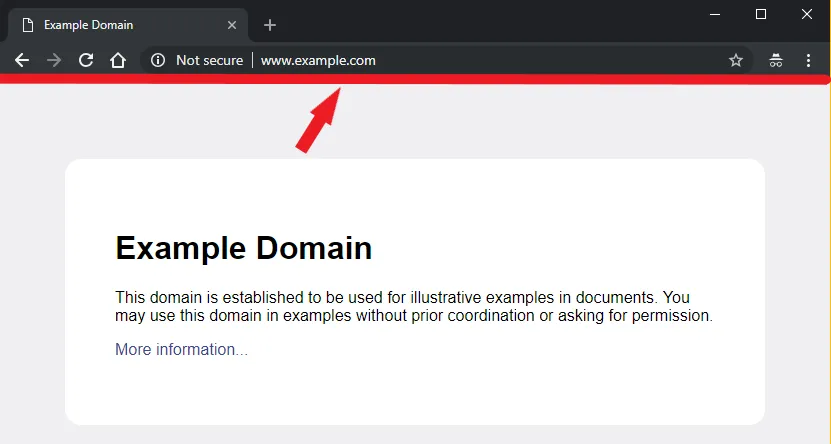
Why You Should Avoid Downloading Files From Third-Party Mirror/Reuploaded Sites
Not every third-party mirror is dangerous. Authorized mirrors are commonly used to improve download speed and reduce pressure on project infrastructure. The risk comes from mirrors or reupload pages that cannot be verified through the original publisher.
Risk of Bundled Potentially Unwanted Programs (PUPs / Adware): An unofficial download page may wrap the original application inside its own installer. The wrapper can display additional offers, change browser settings, install unrelated programs, or collect usage data.
The filename may resemble the official installer even though the outer package was created by the download site.
Malicious Software Supply Chain Attacks: Executable files, disk images, archives, scripts, and document templates can be modified before reuploading. A modified package may contain a backdoor, credential-stealing program, ransomware component, or other unauthorized code.
A malware scanner can reduce risk, but a clean scan does not prove that a new or targeted file is trustworthy. Source verification and cryptographic verification remain important.
Outdated Files Lacking Security Patches: A reupload page may continue distributing an old version after the project releases security or reliability fixes. An outdated file is not necessarily affected by a previously unknown zero-day vulnerability; it may instead contain already known weaknesses that have been corrected in a newer release.
Version numbers should be compared with the project’s release notes. Avoid sites that label old builds as “latest” or offer unsupported modified editions.
Verifying File Integrity Post-Download Using Checksum Hashes ($SHA-256$)
A cryptographic hash converts the complete contents of a file into a fixed-length value:
[
H(m)=h
]
Here, (m) is the file, (H) is a hash function such as SHA-256, and (h) is the resulting digest.
Changing the file normally produces a different digest. A matching checksum therefore confirms that the downloaded file is byte-for-byte identical to the file represented by the published checksum.
It does not independently prove that the file is harmless or genuinely came from the developer. If an attacker controls both the download and the page displaying the checksum, the attacker can publish a matching value for a modified file. Ubuntu’s verification process addresses this by authenticating the checksum list with a digital signature before comparing the ISO hash.
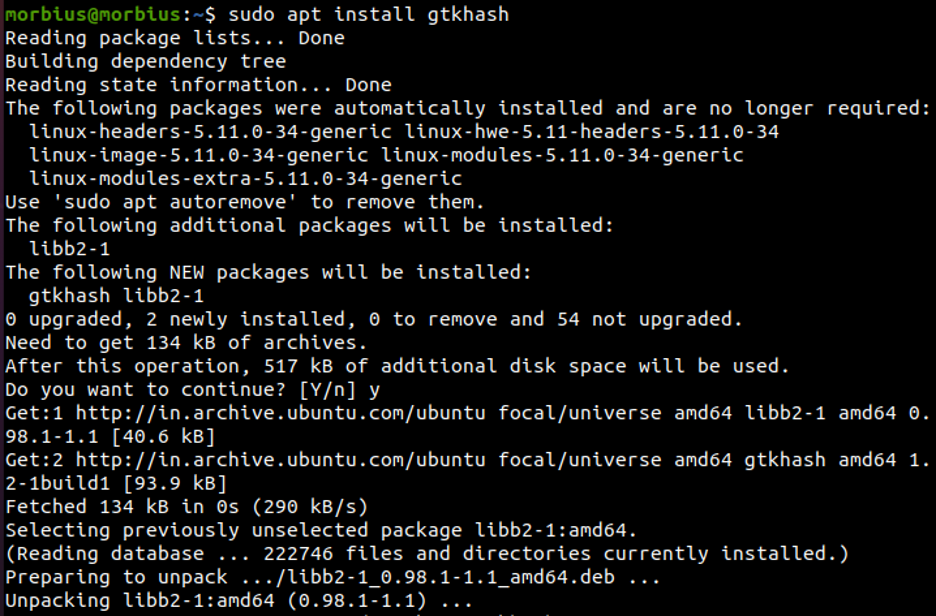
Step-by-Step Checksum Verification Guide:
On Windows (Using Command Prompt / PowerShell):
Microsoft’s certutil command can generate a file hash:
certutil -hashfile "C:\path\to\yourfile.iso" SHA256PowerShell also provides:
Get-FileHash "C:\path\to\yourfile.iso" -Algorithm SHA256Microsoft documents certutil -hashfile as a command that generates and displays a cryptographic hash over a file.
On Linux / macOS (Using Terminal):
On Linux:
sha256sum downloaded-file.isoOn macOS:
shasum -a 256 downloaded-file.isoUse the exact filename and ensure that the command completes without an input or permission error.
Evaluating the Result:
Compare the complete output with the SHA-256 value published by the project. The comparison must match every character.
A matching value confirms correspondence with that checksum. Its reliability depends on obtaining the reference value through an independent, trusted source. A mismatch means the file is not the same and should not be executed. Download it again from a verified source and repeat the test.
Authenticating File Origin via PGP/GPG Digital Signatures (The Ultimate Security Standard)
PGP/GPG signatures are one method of authenticating software releases. They are not the only or universally superior method. Windows Authenticode, signed package repositories, macOS code signing, Sigstore, and other systems can serve similar purposes in different ecosystems.
Open-source projects often sign either the release file itself or a checksum list. A valid signature shows that the signed data has not changed since it was signed by the corresponding private key.
The signature is meaningful only when the public key has been confirmed as belonging to the intended developer. Importing an unknown key from an arbitrary key server does not establish identity. GnuPG recommends checking the full key fingerprint through a trustworthy channel connected to the key owner.

3-Step PGP/GPG Signature Verification Workflow:
Import and Confirm the Developer’s Public Key:
Obtain the key or fingerprint from the project’s official documentation. Import the key when required:
gpg --import developer-key.ascDisplay its fingerprint:
gpg --fingerprintCompare the complete fingerprint with the value published through an independent official channel.
Download the Signed Checksum or Detached Signature:
Some projects provide a detached signature for the file:
file.iso.sigOthers sign a checksum list:
SHA256SUMS
SHA256SUMS.gpg
Use the method documented by that project.
Run the Verification Command:
For a directly signed file:
gpg --verify file.iso.sig file.isoFor a signed checksum list:
gpg --verify SHA256SUMS.gpg SHA256SUMSAfter authenticating the checksum list, calculate the hash of the downloaded file and compare it with the signed value. Canonical uses this sequence in its Ubuntu download-verification guidance.
A “Good signature” message confirms that the signature mathematically matches the imported key. It does not by itself confirm that the key belongs to the named developer. Review the signing-key fingerprint and any trust warnings before accepting the result.
On Windows, signed executables can also be inspected through the Digital Signatures tab or verified using Microsoft SignTool. Signature validation confirms that a signed file has not changed since signing and identifies the publisher associated with the trusted signing certificate.
An official download is not defined only by its domain extension, HTTPS padlock, or position in search results. The safest source is one linked by the organization, agency, developer, or project responsible for publishing the file. Authorized mirrors and CDN addresses can be legitimate even when their domains differ from the project homepage. Unconfirmed reuploads should be avoided, particularly when they introduce custom installers, misleading advertisements, or unsupported versions.
Use SHA-256 to confirm that a downloaded file matches an independently obtained reference value. When the project provides a signed checksum list, PGP/GPG signature, package signature, or trusted code signature, verify that as well. No single check proves that software is completely safe. Combining a verified source, current release information, checksum comparison, trusted signature, operating-system warnings, and malware protection provides far stronger assurance than relying on any one signal.